
If you purchase through these links, we may earn a small commission at no extra cost to you.
This helps support our work and allows us to keep testing and reviewing the best tech products.
Define Your Primary Use Case
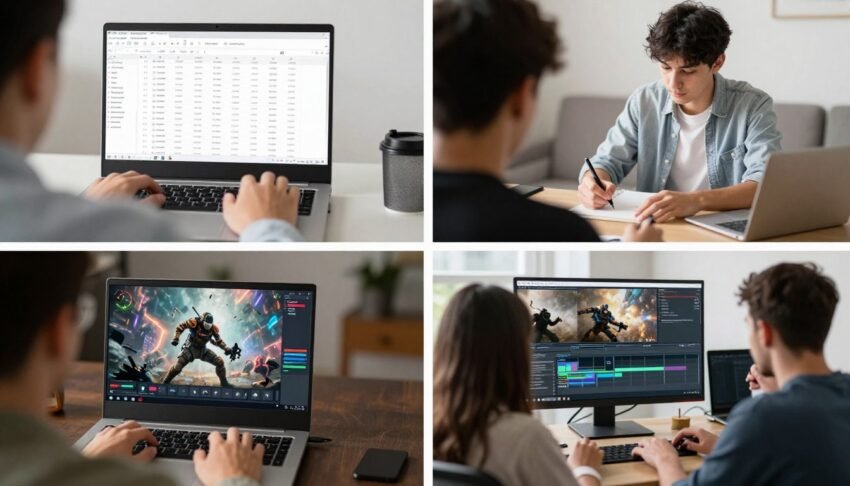
The most important first step in choosing a laptop is understanding exactly what you’ll use it for. Different tasks demand different specifications, and identifying your primary use case will help narrow down your options significantly.
General Use & Productivity
If you primarily use your laptop for web browsing, email, Microsoft Office, streaming videos, and other basic tasks, you don’t need high-end specifications. Look for:
- Mid-range processor (Intel Core i5/AMD Ryzen 5)
- 8-16GB RAM
- 256-512GB SSD storage
- Integrated graphics
- Good battery life (8+ hours)
Business & Professional
For business users who need reliability, security features, and good performance for multitasking, prioritize:
- Powerful processor (Intel Core i7/AMD Ryzen 7)
- 16GB RAM minimum
- 512GB-1TB SSD storage
- Durable build quality
- Security features (fingerprint reader, IR camera)
- Extended battery life
Content Creation & Media Editing
For photo/video editing, graphic design, or 3D modeling, you’ll need powerful hardware:
- High-performance processor (Intel Core i7/i9, AMD Ryzen 7/9)
- 32GB+ RAM
- 1TB+ SSD storage
- Dedicated graphics card
- High-quality display with good color accuracy
- Adequate ports for peripherals
Gaming
Gamers need laptops that can handle demanding titles with smooth performance:
- Gaming-optimized processor (Intel Core i7/i9, AMD Ryzen 7/9)
- 16-32GB RAM
- 512GB-1TB SSD storage
- Powerful dedicated graphics (NVIDIA RTX or AMD Radeon)
- High refresh rate display (144Hz+)
- Effective cooling system
Students
Students need a balance of performance, portability, and affordability:
- Mid-range processor (Intel Core i5/AMD Ryzen 5)
- 8-16GB RAM
- 256-512GB SSD storage
- Lightweight design (under 4 pounds)
- Long battery life (8+ hours)
- Durable construction
Portability-Focused
If you travel frequently or work from different locations, prioritize:
- Lightweight design (under 3 pounds)
- Compact form factor (13-14 inch screen)
- Exceptional battery life (10+ hours)
- Durable build quality
- Energy-efficient processor (Intel Core Ultra, Apple M-series)
- Adequate connectivity options
Understanding Processors (CPUs)
The processor is the brain of your laptop, handling all calculations and operations. It significantly impacts performance, battery life, and price. Here’s what you need to know about the major processor families:
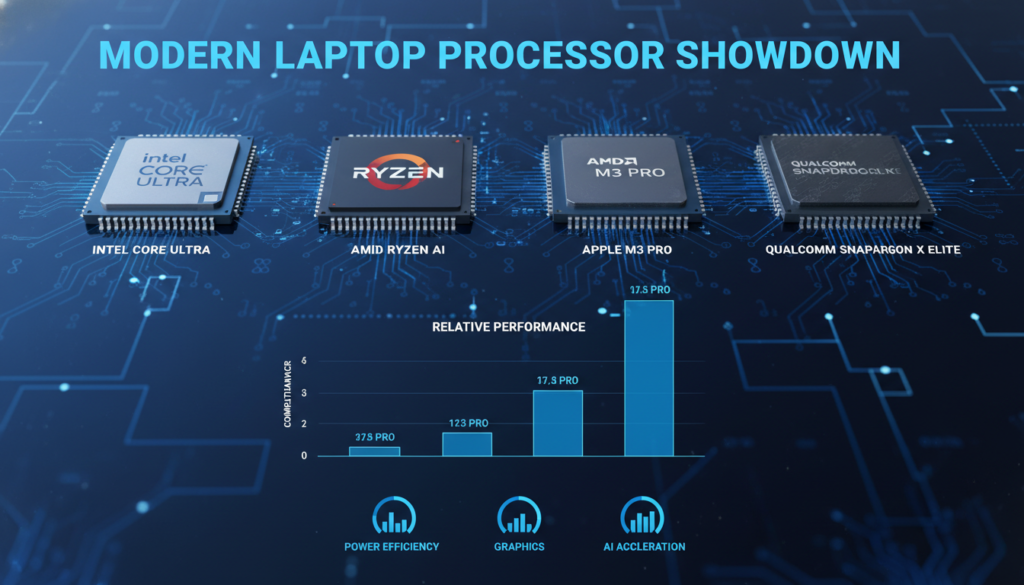
| Processor Family | Performance Level | Best For | Battery Efficiency |
| Intel Core Ultra 5/7/9 | High to Very High | Productivity, Content Creation, Gaming | Good |
| Intel Core i3/i5/i7/i9 | Medium to High | General Use, Productivity, Gaming | Moderate |
| AMD Ryzen 3/5/7/9 | Medium to High | Productivity, Content Creation, Gaming | Good |
| Apple M-series (M2/M3/M4) | High to Very High | Productivity, Content Creation | Excellent |
| Qualcomm Snapdragon X | Medium to High | Productivity, Web Browsing | Excellent |
Processor Recommendations by Use Case
For Basic Users:
If you primarily use your laptop for web browsing, email, and office applications, an Intel Core i3/i5, AMD Ryzen 3/5, or Qualcomm Snapdragon X will provide sufficient performance without breaking the bank.
For Power Users:
Content creators, gamers, and professionals who run demanding software should look for Intel Core i7/i9, AMD Ryzen 7/9, or Apple M-series Pro/Max processors for optimal performance.
Memory (RAM): How Much Do You Need?
RAM (Random Access Memory) is your laptop’s short-term memory, holding the data your computer is actively using. More RAM allows you to run more applications simultaneously and handle larger files without slowdowns.
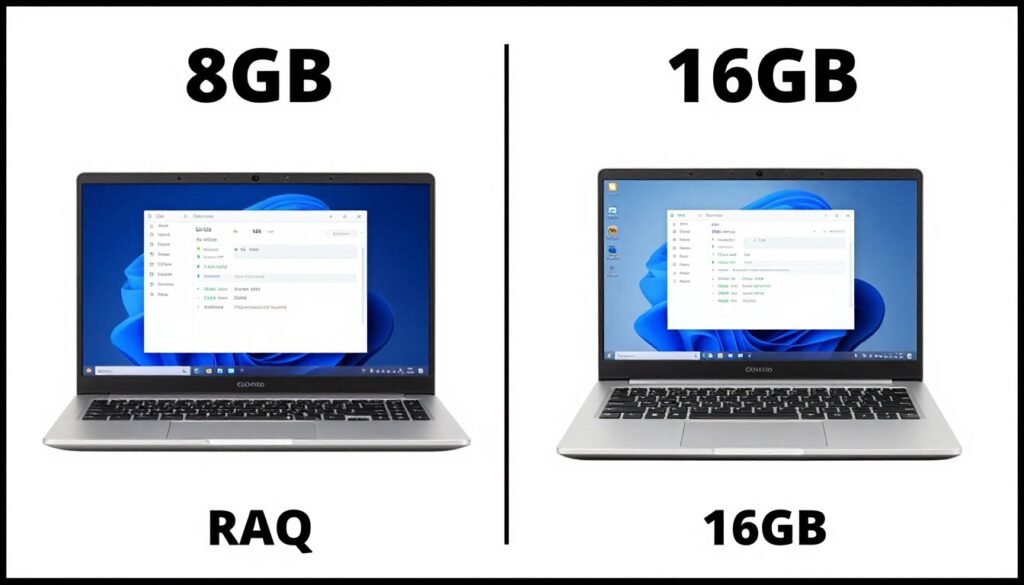
8GB RAM
- Basic web browsing with a few tabs
- Email and messaging
- Office applications (Word, Excel)
- Standard definition video streaming
- Light photo editing
16GB RAM
- Multiple browser windows with many tabs
- Multitasking between several applications
- Photo editing with Photoshop
- Light video editing
- Casual gaming
32GB+ RAM
- Professional video editing
- 3D modeling and rendering
- Virtual machines
- Data analysis with large datasets
- High-end gaming with streaming
RAM Tip: Many modern laptops have RAM soldered to the motherboard, making future upgrades impossible. It’s better to buy a laptop with more RAM than you currently need to future-proof your purchase.
Storage: SSD vs. HDD and Capacity Needs
Storage is where all your files, applications, and the operating system reside. The type and amount of storage significantly impact your laptop’s performance and usability.
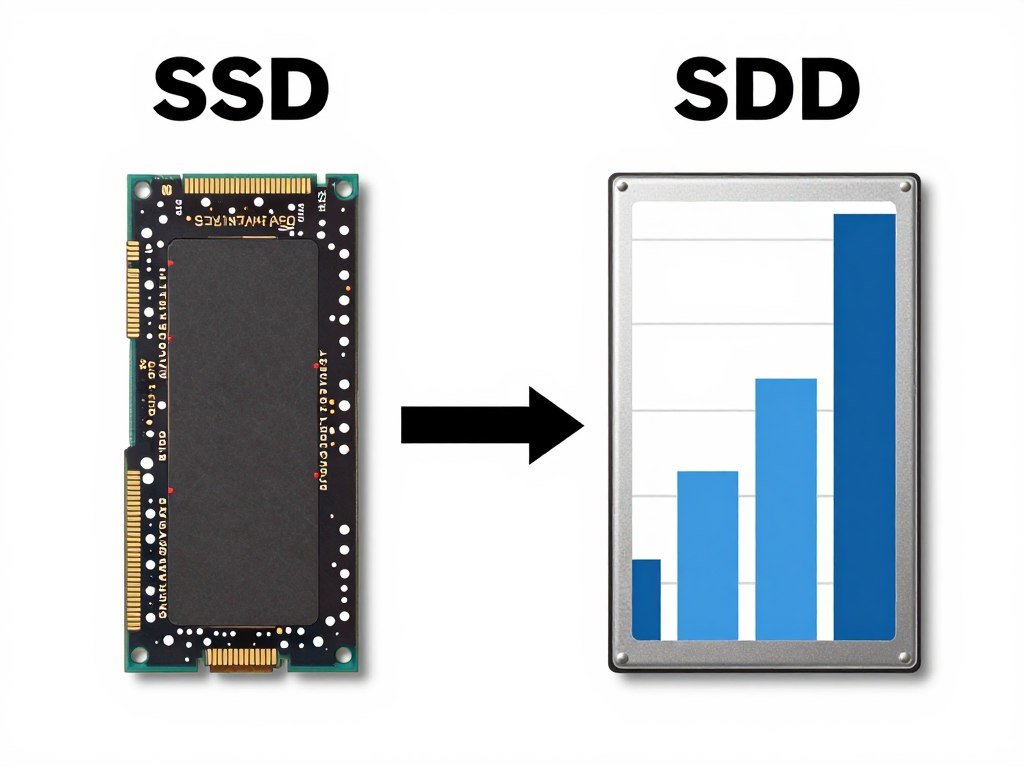
SSD (Solid State Drive)
Modern laptops use SSDs, which have no moving parts and offer several advantages:
- Much faster performance (5-20x faster than HDDs)
- Faster boot times and application loading
- More reliable (no moving parts)
- Less power consumption (better battery life)
- Silent operation
HDD (Hard Disk Drive)
Older or budget laptops might still use HDDs, which have these characteristics:
- Slower performance
- More storage for less money
- Moving parts that can fail
- Higher power consumption
- Can produce noise and vibration
How Much Storage Do You Need?
| Storage Capacity | Suitable For | Typical Contents |
| 256GB SSD | Basic users who store most files in the cloud | OS, applications, documents, few photos |
| 512GB SSD | Average users with moderate local storage needs | OS, applications, documents, photo collection, some videos |
| 1TB SSD | Power users, gamers, content creators | OS, many applications, large game library, photo/video projects |
| 2TB+ SSD | Professional content creators, video editors | OS, professional applications, extensive media libraries, large project files |
Storage Tip: If you’re deciding between more RAM or more storage and have a limited budget, prioritize RAM for performance. You can always add external storage later, but RAM is often not upgradable in modern laptops.
Graphics: Integrated vs. Dedicated GPUs
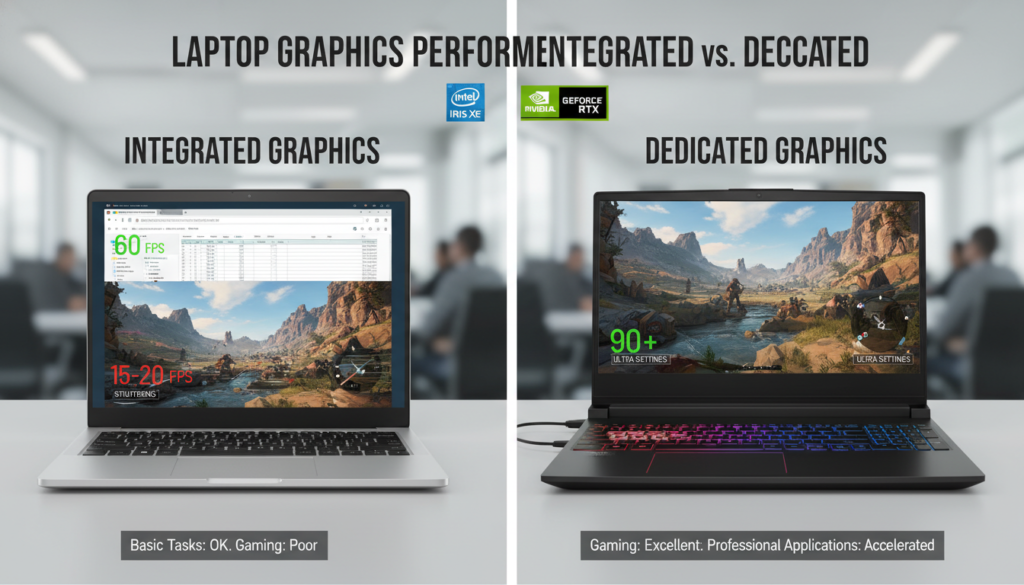
The graphics processing unit (GPU) handles everything you see on screen, from basic web browsing to demanding 3D games and video rendering. There are two main types of GPUs in laptops:
Integrated Graphics
Built into the CPU, sharing system memory:
- Sufficient for everyday tasks, web browsing, and office work
- Can handle light photo editing and casual games
- More power-efficient (better battery life)
- Less expensive
- Examples: Intel Iris Xe, AMD Radeon Graphics, Apple M-series integrated GPU
Dedicated Graphics
Separate GPU with its own memory (VRAM):
- Necessary for gaming, video editing, 3D modeling
- Significantly better performance for graphically intensive tasks
- Consumes more power (shorter battery life)
- Generates more heat (requires better cooling)
- Examples: NVIDIA GeForce RTX series, AMD Radeon RX series
Who Needs Dedicated Graphics?
You DO Need Dedicated Graphics If:
- You play modern PC games
- You edit video professionally
- You work with 3D modeling software
- You use applications that benefit from GPU acceleration
- You connect multiple high-resolution external displays
You DON’T Need Dedicated Graphics If:
- You primarily use office applications
- You mainly browse the web and stream videos
- You prioritize battery life over graphics performance
- You’re on a tight budget
- You only play casual or older games
Display: Size, Resolution, and Panel Type
The display is your window to everything you do on your laptop. Its quality affects your daily experience, eye comfort, and the accuracy of visual work.
Display Size
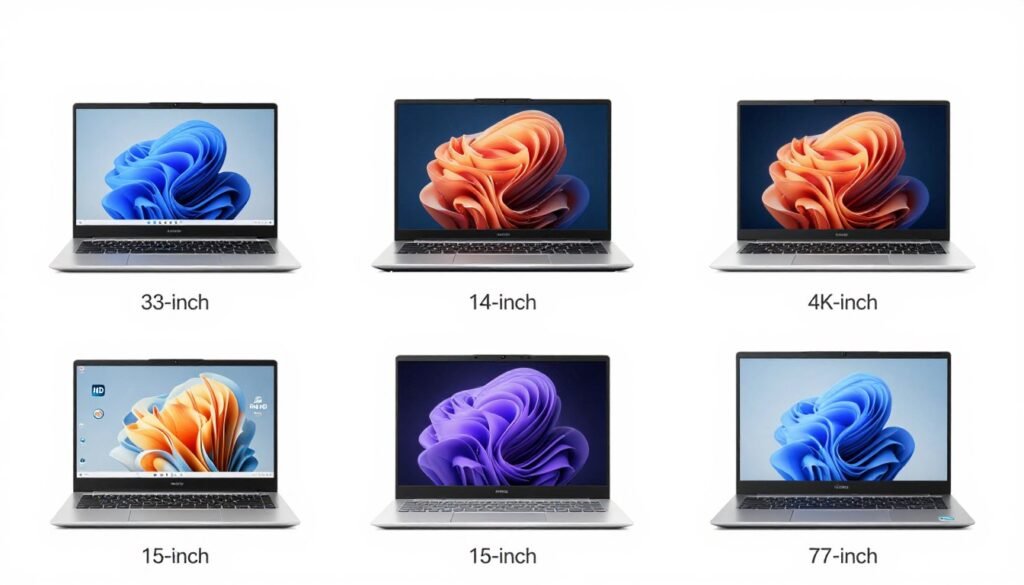
| Size | Portability | Viewing Experience | Best For |
| 13-inch | Excellent | Compact | Frequent travelers, commuters |
| 14-inch | Very Good | Good balance | Students, business professionals |
| 15-16 inch | Moderate | Comfortable | General use, productivity |
| 17-inch+ | Poor | Immersive | Gaming, content creation, desktop replacement |
Display Resolution
HD (1366 x 768)
Found on budget laptops. Adequate for basic tasks but text and images aren’t as sharp. Not recommended unless on a very tight budget.
Full HD (1920 x 1080)
The sweet spot for most users. Offers good clarity for text and videos while balancing battery life and performance needs.
QHD/4K (2560 x 1440 and above)
Extremely sharp display ideal for content creators and those who value visual quality. Consumes more battery and requires more powerful hardware.
Panel Types
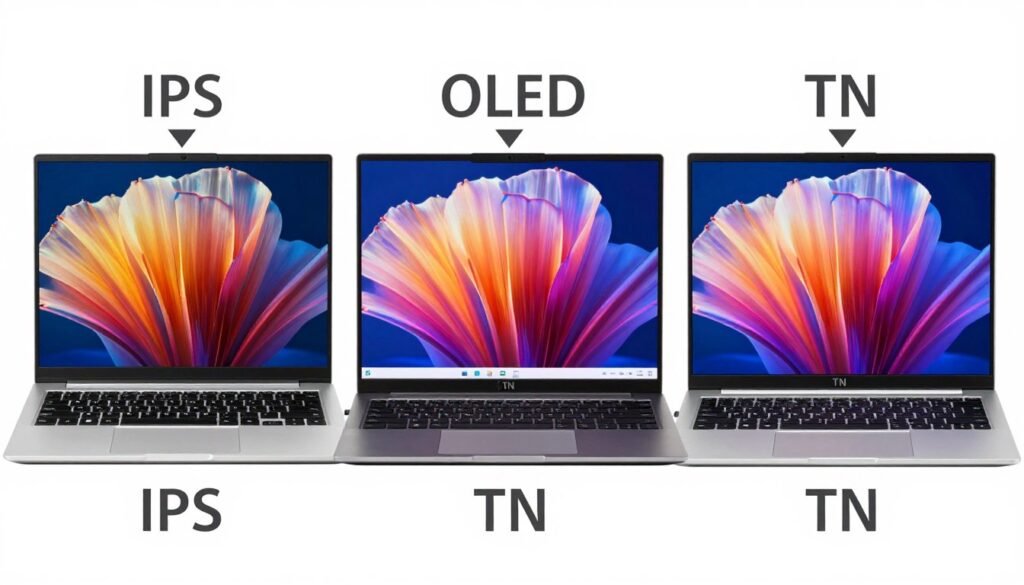
TN Panels
Cheapest option with fast response times but poor viewing angles and color reproduction. Only consider for budget gaming laptops where response time matters.
IPS Panels
Good balance of quality and price with excellent viewing angles and color accuracy. The standard choice for most quality laptops.
OLED Panels
Premium option with perfect blacks, vibrant colors, and wide viewing angles. Ideal for content creators but more expensive and can consume more power.
Display Tip: For most users, a 14-15 inch Full HD (1920 x 1080) IPS display offers the best balance of usability, quality, and battery life. If you work with visual content professionally, consider an OLED display with higher resolution.
Form Factor and Design Considerations
Beyond the internal specifications, the physical design of your laptop significantly impacts your daily experience with it.
Laptop Types
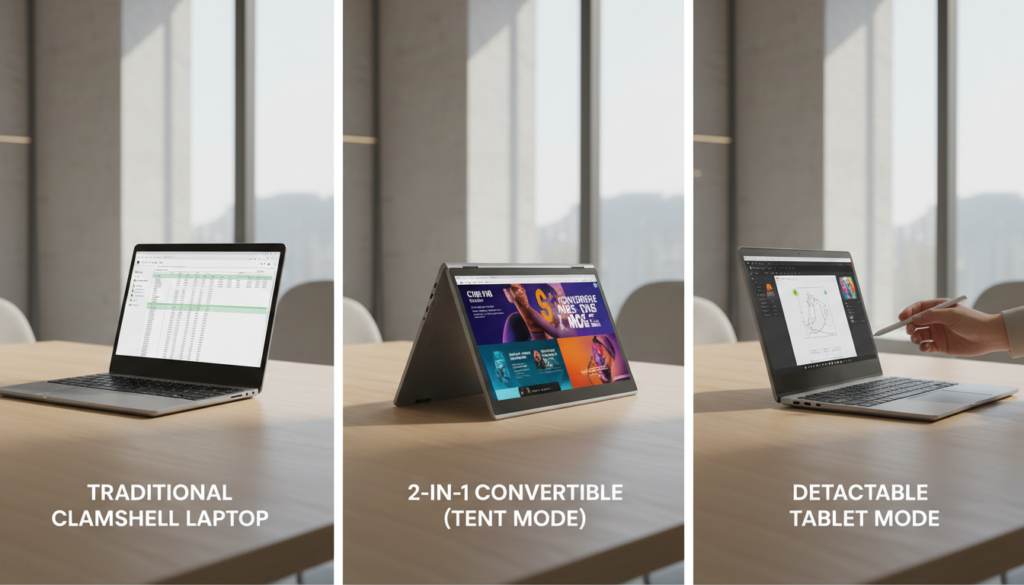
Traditional Clamshell
The classic laptop design with a screen that opens and closes. Offers the best keyboard experience and typically the most performance for the price.
2-in-1 Convertible
Features a 360-degree hinge that allows the screen to fold back completely, turning the laptop into a tablet. Great for note-taking, drawing, and consuming content.
Detachable
The screen can be completely separated from the keyboard base to function as a standalone tablet. Offers maximum versatility but often with compromises in performance or keyboard quality.
Build Quality and Materials
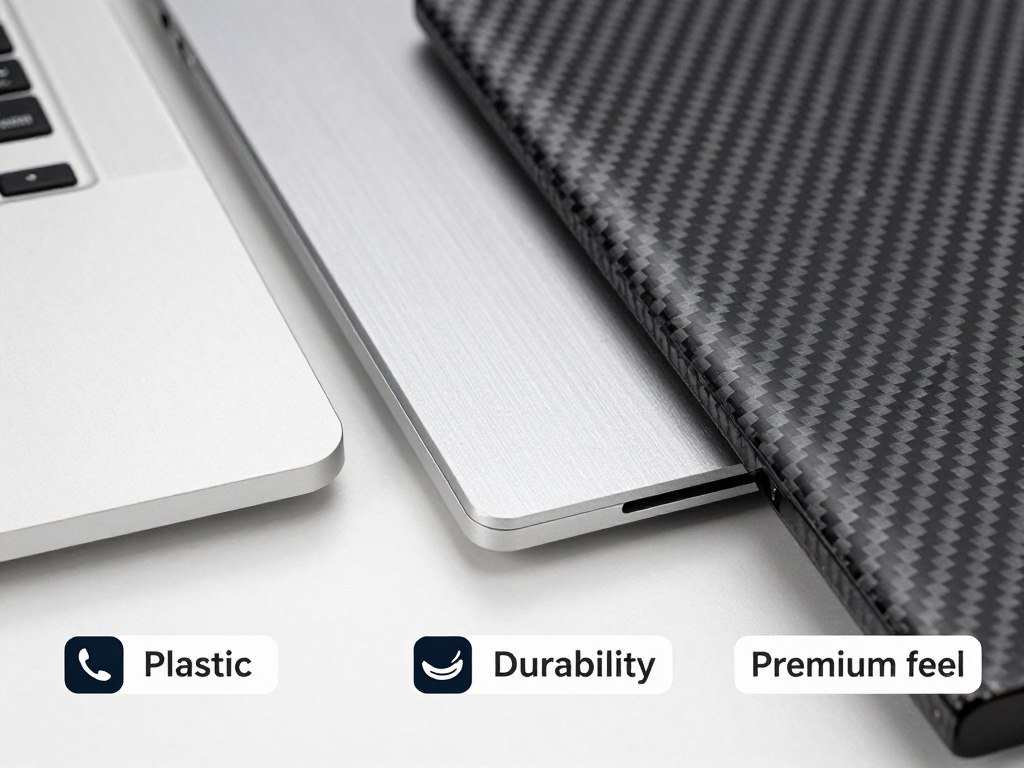
Plastic
Common in budget laptops. Lightweight but less durable and can feel cheap. Good for those on a tight budget or who need the lightest possible device.
Aluminum
Found in mid-range to premium laptops. Offers a good balance of durability, weight, and premium feel. Conducts heat well, helping with cooling.
Magnesium Alloy/Carbon Fiber
Premium materials used in high-end laptops. Extremely lightweight yet durable. Provides the best strength-to-weight ratio but comes at a higher price.
Portability Factors
Weight
Consider how often you’ll carry your laptop:
- Ultra-portable: Under 3 pounds
- Portable: 3-4 pounds
- Moderate: 4-5 pounds
- Desktop replacement: 5+ pounds
Battery Life
Real-world battery expectations:
- Excellent: 10+ hours
- Good: 7-10 hours
- Average: 5-7 hours
- Poor: Less than 5 hours
Ports and Connectivity
The available ports on your laptop determine what devices you can connect without adapters or dongles. Consider your peripherals and connectivity needs carefully.
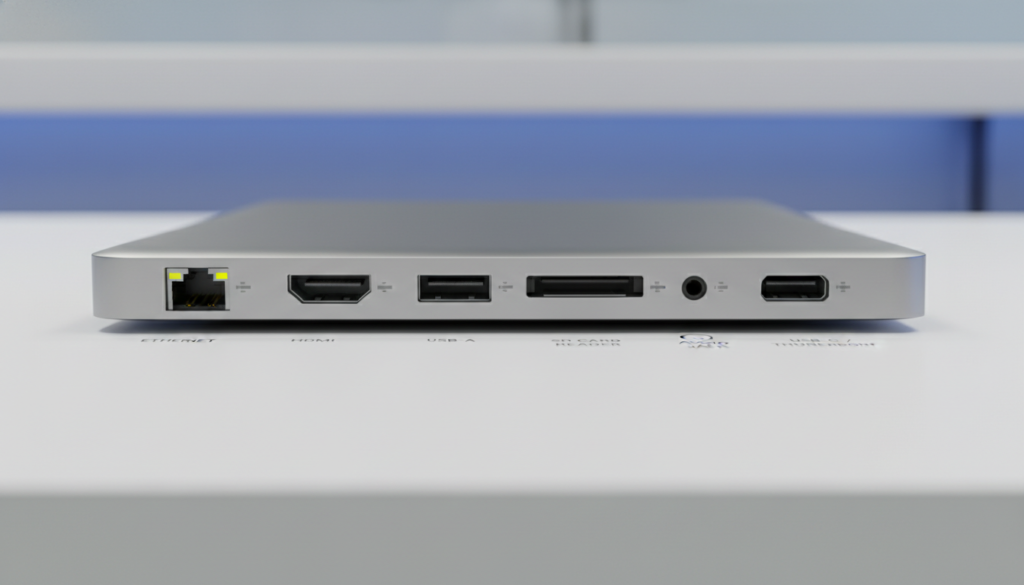
| Port Type | Function | Importance |
| USB-C/Thunderbolt | Data transfer, video output, charging | Essential on modern laptops; versatile and future-proof |
| USB-A | Connecting legacy devices | Still useful for existing peripherals like mice, keyboards |
| HDMI | Connecting to external displays | Convenient for presentations and external monitors |
| SD Card Reader | Reading memory cards | Important for photographers and videographers |
| Audio Jack | Connecting headphones/speakers | Still relevant despite wireless options |
| Ethernet | Wired internet connection | Useful for stable, high-speed internet |
Port Consideration: Many ultra-thin laptops now come with only USB-C ports, requiring dongles or adapters for connecting other devices. Consider your connectivity needs carefully before choosing a minimalist design.
Operating System: Windows, macOS, or ChromeOS?
Your operating system choice affects everything from available software to user experience and hardware options.
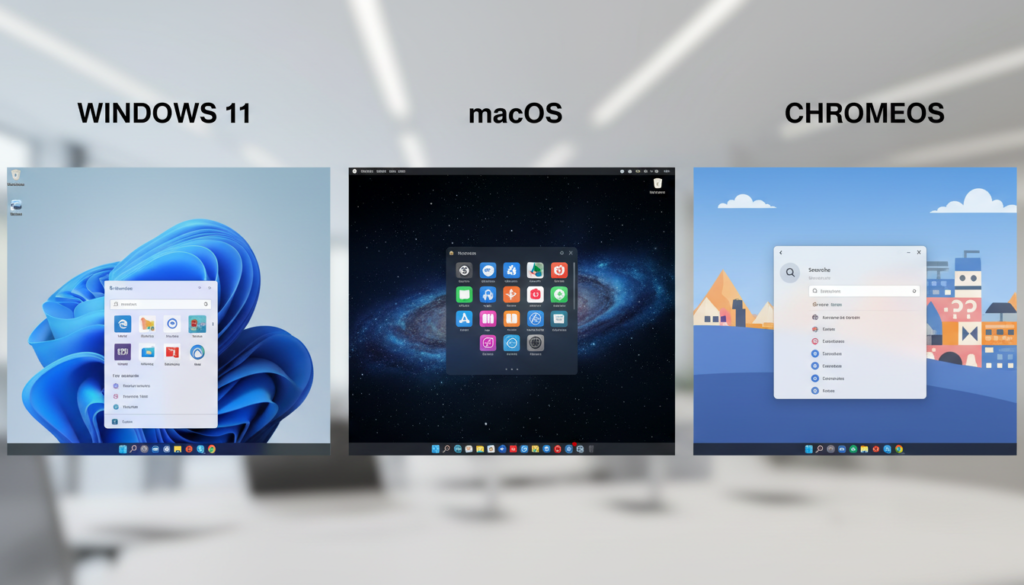
Windows
Pros:
- Widest range of hardware options at all price points
- Compatible with the most software and games
- More customizable
- Touch and pen support on many models
Cons:
- More susceptible to malware
- Quality varies widely between manufacturers
- Can become slower over time
Best for: General users, gamers, business users, those who need specific Windows software
macOS
Pros:
- Sleek, intuitive interface
- Excellent build quality and reliability
- Strong security
- Seamless integration with iPhone/iPad
- Excellent for creative work
Cons:
- Limited to Apple hardware (higher entry price)
- Fewer gaming options
- Less customizable
Best for: Creative professionals, Apple ecosystem users, those who value simplicity and reliability
ChromeOS
Pros:
- Simple and secure
- Fast performance even on budget hardware
- Long battery life
- Automatic updates
- Affordable options available
Cons:
- Limited offline functionality
- Can’t run traditional desktop software
- Limited advanced features
Best for: Students, casual users, those who work primarily in a browser, budget-conscious buyers
Choose the operating system that aligns with your existing devices, software needs, and personal preferences. If you’re deeply integrated into the Apple ecosystem, a MacBook might be worth the premium. If you need maximum software compatibility or gaming capabilities, Windows is likely your best bet. For simple web-based tasks on a budget, consider a Chromebook.
Setting Your Budget: What to Expect at Different Price Points
Understanding what you get at different price points helps you make the most of your budget and avoid overspending on features you don’t need.
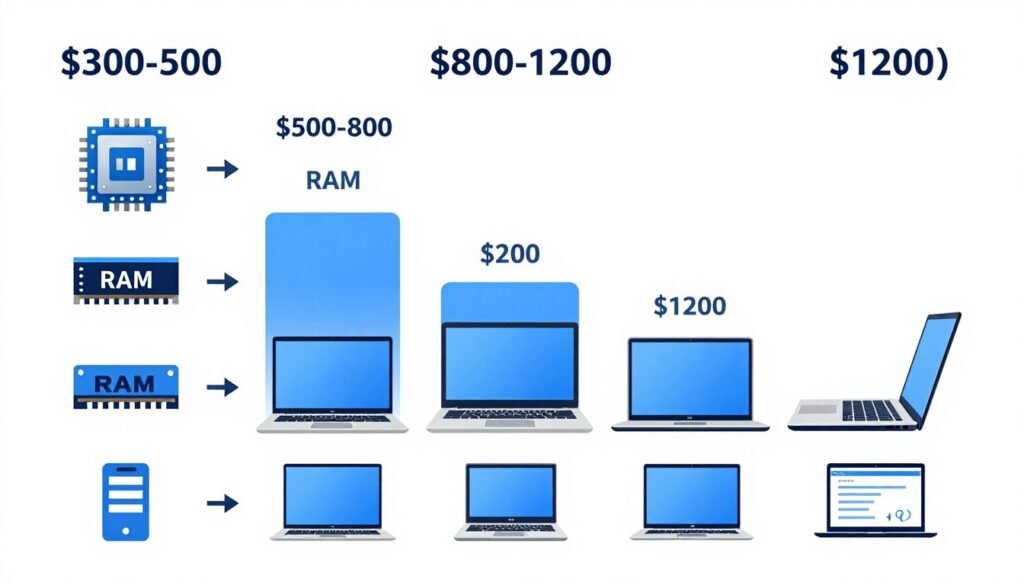
Budget ($300-$500)
At this price point, expect:
- Basic processors (Intel Celeron/Pentium, AMD Athlon)
- 4-8GB RAM
- 128-256GB storage (often slower eMMC in the lower range)
- Plastic construction
- HD displays (1366 x 768)
- Chromebooks offer better value in this range
Best for: Basic web browsing, email, document editing, students with limited needs
Mid-Range ($500-$800)
At this price point, expect:
- Mid-tier processors (Intel Core i3/i5, AMD Ryzen 3/5)
- 8-16GB RAM
- 256-512GB SSD storage
- Mix of plastic and metal construction
- Full HD displays (1920 x 1080)
- Decent battery life (6-8 hours)
Best for: Everyday productivity, students, casual users who want good performance
Premium ($800-$1200)
At this price point, expect:
- High-performance processors (Intel Core i5/i7, AMD Ryzen 5/7)
- 16GB RAM
- 512GB-1TB SSD storage
- Metal construction
- High-quality Full HD or higher resolution displays
- Excellent battery life (8-12 hours)
- Better keyboards, trackpads, and speakers
Best for: Professionals, power users, light content creation, casual gaming
High-End ($1200-$1800)
At this price point, expect:
- Top-tier processors (Intel Core i7/i9, AMD Ryzen 7/9, Apple M-series)
- 16-32GB RAM
- 1TB+ SSD storage
- Premium build quality
- High-resolution displays with excellent color accuracy
- Possibly dedicated graphics
- Premium features (fingerprint readers, face recognition)
Best for: Content creators, professionals, demanding workloads
Gaming/Specialized ($1500+)
At this price point, expect:
- High-performance processors
- Powerful dedicated graphics (NVIDIA RTX, AMD Radeon RX)
- 16-64GB RAM
- 1TB+ fast SSD storage
- High refresh rate displays (144Hz+)
- Advanced cooling systems
- RGB lighting and gaming-specific features
Best for: Gamers, video editors, 3D modelers, other specialized users
Budget-Stretching Tips
- Prioritize RAM and processor over storage (you can add external storage later)
- Look for last-generation models when new ones release
- Consider certified refurbished options from reputable sellers
- Watch for seasonal sales (Back to School, Black Friday)
- Check if you qualify for education or corporate discounts
- Consider Chromebooks if your needs are primarily web-based
Final Decision Framework: Putting It All Together
Now that you understand the key components and considerations, use this framework to make your final decision.
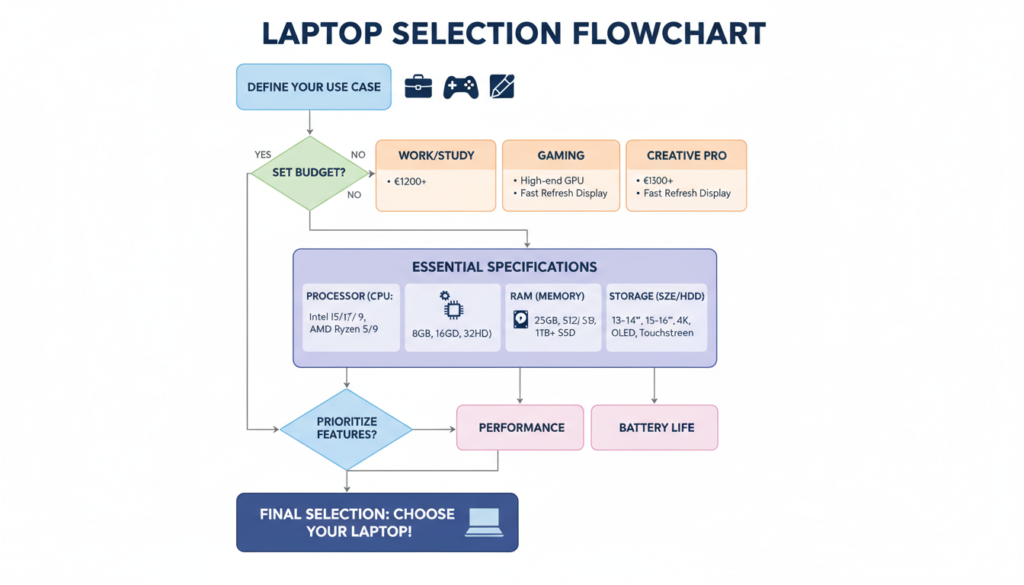
- Define your primary use case – What will you use your laptop for most often? This determines your minimum performance requirements.
- Set your budget range – Be realistic about what you can spend, but consider long-term value over initial cost.
- Determine your must-have specifications based on your use case:
- Processor: What level of performance do you need?
- RAM: How much multitasking will you do?
- Storage: How much local storage do you require?
- Graphics: Do you need dedicated graphics?
- Display: What size and quality do you prefer?
- Consider portability needs – How often will you carry your laptop? This affects your choices on weight, battery life, and size.
- Choose your operating system based on your ecosystem, software needs, and preferences.
- Identify your connectivity requirements – What devices will you connect? Do you need specific ports?
- Research specific models that meet your criteria, reading professional reviews and user feedback.
- Try before you buy if possible – Test the keyboard, trackpad, and screen in person if you can.
Ready to Make Your Decision?
Use this quick checklist to summarize your requirements:
| Requirement | Your Answer | Recommended Specification |
| Primary Use | [e.g., Productivity, Gaming, etc.] | See use case section for details |
| Budget | [Your budget range] | See budget section for expectations |
| Processor Needs | [Basic/Mid/High performance] | Based on performance needs |
| RAM Required | [8GB/16GB/32GB+] | Based on multitasking needs |
| Storage Needed | [256GB/512GB/1TB+] | Based on local storage needs |
| Graphics Requirements | [Integrated/Dedicated] | Based on visual workloads |
| Display Preferences | [Size and resolution] | Based on visual needs and portability |
| Portability Importance | [Low/Medium/High] | Affects weight and battery priorities |
| Operating System | [Windows/macOS/ChromeOS] | Based on ecosystem and software needs |
Conclusion: Making Your Final Choice
Choosing the right laptop doesn’t have to be overwhelming. By understanding your specific needs and the key components that matter for your use case, you can make a confident decision that balances performance, features, and budget.
Remember that the perfect laptop is the one that meets your specific requirements—not necessarily the one with the highest specifications or the latest features. Focus on what matters for your daily use, and you’ll end up with a laptop that serves you well for years to come.
Once you’ve narrowed down your options using this guide, read professional reviews of specific models, check user feedback for reliability issues, and if possible, try the keyboard and trackpad in person before making your final decision. With the knowledge you’ve gained from this guide, you’re well-equipped to choose a laptop that’s perfect for your needs.
Ready to Start Shopping?
Use what you’ve learned to find your perfect laptop match!
Find Best laptops in bellow
Best Laptops of 2025